I like scripts
2026-05-20
I’m that person who will try to find a way to keep from doing the same boring thing over and over. Recently the thing that was bothering me was how many clicks it took me to sync my website using Transmit. Nothing wrong with the app, it just was too repetitive to do (nearly) daily.
So I took a different tack.
First, I installed rclone, which “is a command-line program to manage files on cloud storage.” I have just enough command-line knowledge to get the one thing done I want to get done. If you’re dealing with cloud storage frequently (and know what you are doing) then it might work for you.
After a lot of trial and error, I got it to talk to my website files — they have some instructions specifically for Fastmail which helped. I start with a dry run, review the files to be uploaded , and then run it again with a real sync.
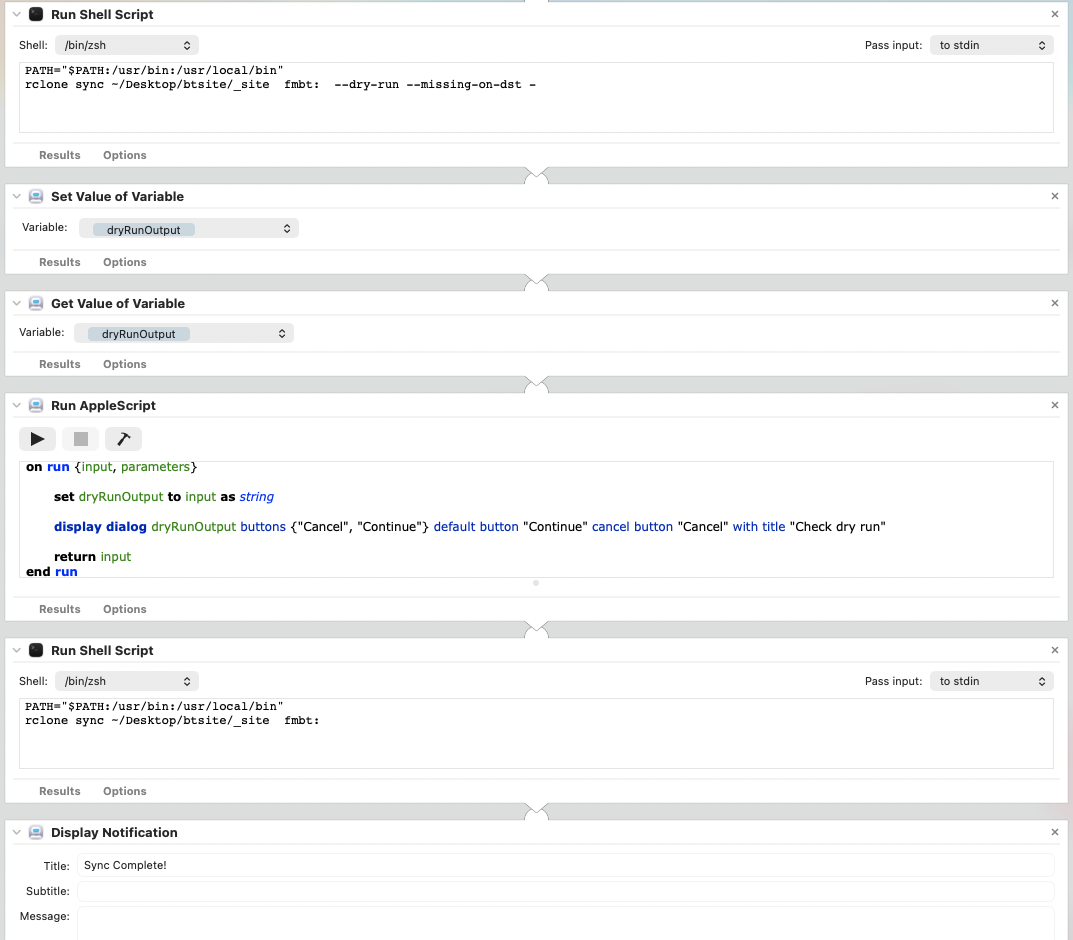
I made an Automator action that would run the shell script (effectively only one line) , open the returned text file in BBEdit, ask for confirmation to continue, then run the second shell script.
That worked ok for a couple of weeks, but it seemed dumb to have that text file hanging around.
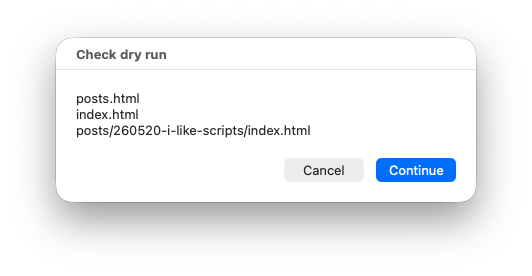
So today I decided to fix that, and ran into more issues, primarily that Automator’s Ask for Confirmation dialog box does not accept a variable in the message body. It does in the header, but if you have multiple lines it just… doesn’t look nice.
Eventually with the help of New!Google I managed it. I had to use an AppleScript dialog box instead of the built-in confirmation dialog. But that’s ok, it’s done now!
- Run Shell Script (pass input: to stdin)
PATH="$PATH:/usr/bin:/usr/local/bin"
rclone sync ~/Desktop/btsite/_site fmbt: --dry-run --differ - --exclude "*.json" --exclude "*.xml"
The - after --differ the end tells rclone to output to stdout. I’m excluding json and xml because I really only care about the posts
2. Set Value of Variable dryRunOutput3. Get Value of Variable dryRunOutput
It turns out you don’t need these two steps
- Run AppleScript
on run {input, parameters}

    set {TID, AppleScript's text item delimiters} to {AppleScript's text item delimiters, "\n"}
    set intermediate to input as text
    set AppleScript's text item delimiters to TID
    set dryRunOutput to intermediate as string
    display dialog dryRunOutput buttons {"Cancel", "Continue"} default button "Continue" cancel button "Cancel" with title "Check dry run"
    return input
end runI had to do some thrashing around with delimiters because even though the output from rclone is separated by linebreaks, AppleScript mushed them altogether.
- Run Shell Script (pass input: to stdin)
PATH="$PATH:/usr/bin:/usr/local/bin"
rclone sync ~/Desktop/btsite/_site fmbt:- Display Notification Title: Sync Complete!
Save it as a Quick Action, find it in Finder and assign a key-command to it.
(I need to fix this, because it’s getting marked as a Text action and I want it to be available in Finder)
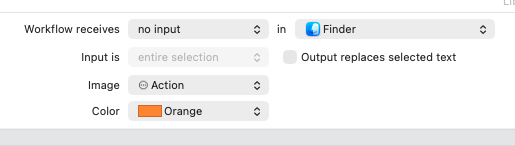
Ah, it gets set up at the top of the Automator screen. Workflow receives: no input in Finder is what makes it available in Finder. I tried setting it as “Any Application” but it didn’t show up in Finder. Can’t have everything I guess!
Here’s a screencap of (the uncorrected version of) my Quick Action, in case someone is looking to do something similar and wants to see how it’s laid out.